

Agentic
Overview
Section titled “Overview”Agentic is the workspace control plane for agent identity, tool and MCP discovery, authorization, approvals, and activity. The normal setup is five steps and uses friendly agent, tool, action, and server names throughout.
Identity proof ↓Agent ↓Authorization: resource + tool + optional action ├─ Allow → Tool or MCP executes ├─ Deny → Blocked └─ Require approval → Held for review ↓Runs | Decisions | TrendsOne canonical MCP execution boundary
Section titled “One canonical MCP execution boundary”When Agentic authorization is enabled, all server-owned MCP execution surfaces converge before the tool is invoked:
| Entry surface | Canonical behavior |
|---|---|
JSON-RPC /mcp tools/call | Requires an exact Allow and returns a safe MCP error result for Deny, pending approval, or unavailable authorization. |
POST /v1/mcp/tool/execute | Requires the same decision; responds with 403 Deny, 202 approval required, or 503 unavailable without executing. |
| Agent Mode | tools_to_auto_execute is only eligibility; each attempted call still requires Allow. |
| Code Mode | The outer code meta-call and every nested tool call are authorized separately. |
That decision revalidates the current Virtual Key/agent binding, Registry action, exact-workspace OpenFGA relationships, optional context policy, and Command Authority state. Advisory/shadow configuration, catalogue visibility, an auto-execution list, or an OAuth grant cannot turn a Deny into execution.
MCP OAuth authenticates the gateway’s outbound connection or delegated upstream caller; it does not replace Agentic authorization. The legacy direct MCP result cache is also bypassed on canonical calls until a cache key can bind the complete agent subject, delegated identity, client generation, and decision. See MCP tool execution, MCP OAuth 2.1, and Relationship Authorization.
Navigation
Section titled “Navigation”Open Agentic in the workspace sidebar:
| Page | Use it for |
|---|---|
| Work Queue | Review registrations, high-impact action approvals, drift, and blocked or failed runs. |
| Assets | Register or discover agents, tools, named actions, networks, ownership, and risk. |
| Enrolment | Author per-class rules so matching agents enrol without an individual review. |
| Identities | Manage users, groups, roles, permissions, service accounts, and identity providers. |
| MCP Registry | Manage server connections and the workspace’s MCP configuration in the Settings tab. |
| Policy & Access | Use Guided access to grant and test least privilege, Action approvals for high-impact actions, and Runtime policy for enforcement. |
| Activity | Use Runs, Decisions, and Trends to investigate and monitor Agentic traffic. |
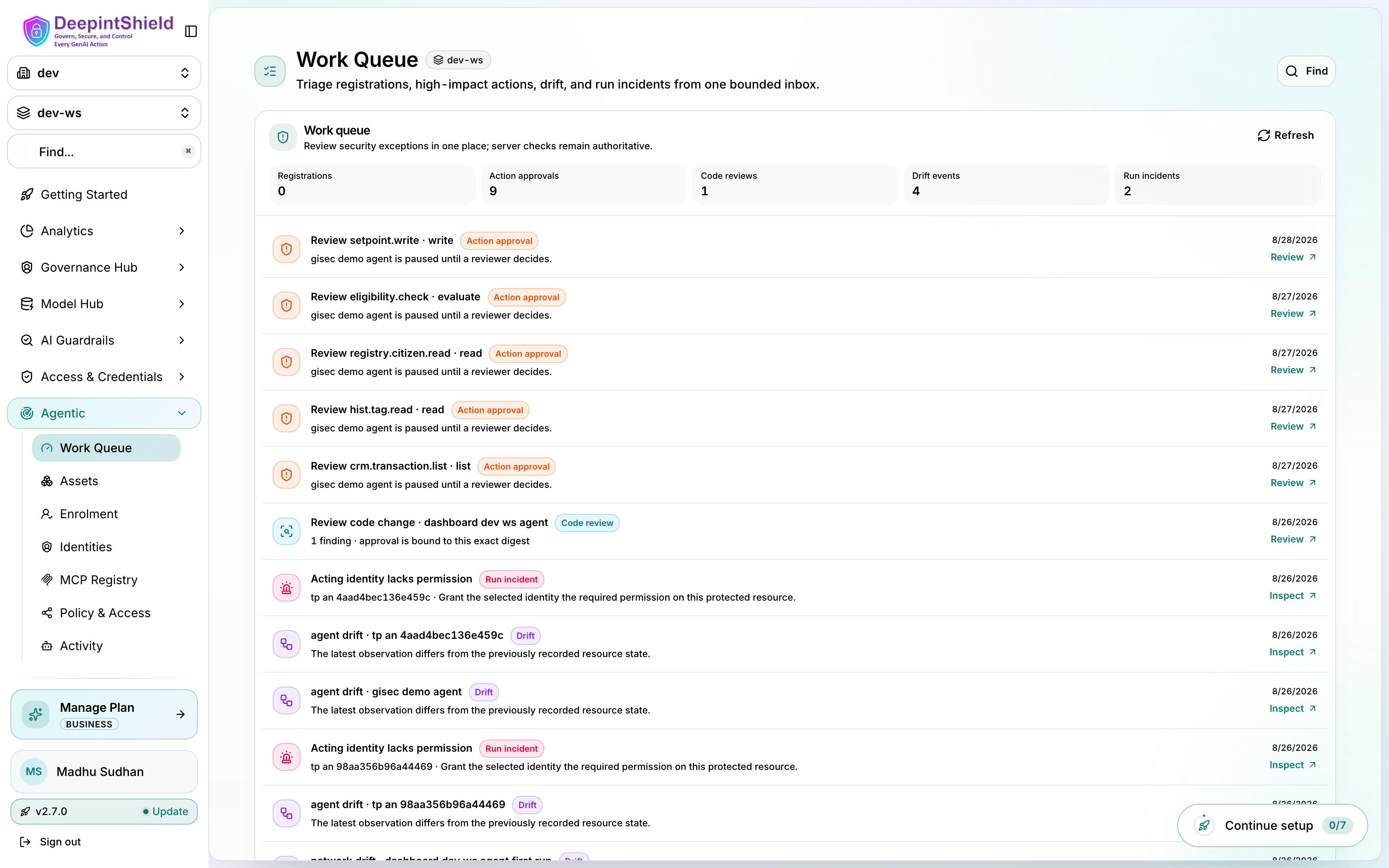
MCP-only users retain MCP Registry when their Agentic access is otherwise limited. Connection inventory and workspace MCP settings remain together; the Settings tab loads only when selected and authorized. Open authorization-safe cache administration from Activity, and advanced relationship/model administration from Policy & Access.
Developer and Team workflows execute without Agentic Security. Team retains included policy configuration and historical activity. Business and above add governed execution, identity, integrity, approvals, and rollout controls. The same boundary is enforced on the API and in the console, and protected pages do not mount until the organization’s entitlements have loaded. Switching organizations clears the previous plan’s access immediately.
| Capability | Team | Business |
|---|---|---|
| Work Queue and workspace Agentic Security switch | Upgrade | Yes |
| MCP Registry (within the plan’s MCP server quota) | Yes | Yes |
| Guided access console | Upgrade | Yes |
| Runtime policy: read configuration, author the external OPA/Cedar context policy | Yes | Yes |
| Activity: Runs, Decisions, Trends, and the Audit tab of relationship changes | Yes | Yes |
| Registrations, code reviews, drift review; Assets, Enrolment, Identities; AIBOM export | No | Yes |
| Temporary delegation (create, renew, revoke) | No | Yes |
| Action approvals (direct page, embedded panel, and approval APIs) | No | Yes |
| Runtime policy: enforcement mode and blueprint protection settings | No | Yes |
| Advanced relationships, model publication (canonical and compatibility routes) | No | Yes |
| Blueprint scans, Agentic observability, Agentic Cache | No | Yes |
Developer and Team see Upgrade to Business in Work Queue and Guided access. On Business and above, workspace administrators can use the Agentic Security switch in Work Queue to turn the entire security workflow off or on. Existing workspaces default to on. When off, the SDK skips discovery, blueprint review, identity proof, decisions, approvals, and run-ledger calls. Each new invocation reads the current setting; turning it on restores the existing checks. Existing policies, registrations, and historical activity remain stored. Ordinary gateway authentication, workspace boundaries, and Virtual Key MCP restrictions continue to apply in both modes.
A runtime policy save that mixes Team and Business fields is checked before anything is persisted. MCP server quotas are Developer 1, Team 25, Business 50, and unlimited on Enterprise; they count the whole organization across workspaces regardless of search or paging, new OAuth connections re-check capacity when they complete, and an unknown quota disables creation.
Set up Agentic in five steps
Section titled “Set up Agentic in five steps”-
Review pending work and runtime policy
Open Agentic → Work Queue and triage any registration, action approval, discovery drift, or blocked/failed run. Each row opens the exact review or evidence record. Then open Policy & Access → Runtime policy and confirm the mode is Enforcing. Use Advisory only for a temporary migration or access-change validation.
-
Authenticate people and agents
Open Agentic → Identities → Identity providers. Connect the required Entra identity provider, save it, and test the connection. Add or sync the people, groups, roles, and service accounts that may act through an agent from the other Identities tabs.
Next, open Assets → Agents, select the agent, and choose Identity & credentials. Associate the existing workspace credential and identity provider by name, then save. A provider-backed identity is recommended when separate agent workloads must be distinguished cryptographically. See Agent workload identity for provider types, identity-class matching, accepted token lifetimes, replay protection, and proof-of-possession.
Once several agents share an issuer, author an enrolment policy under Agentic → Enrolment so matching workloads arrive already described and the review queue holds exceptions rather than the whole population.
Deployment builds may optionally prefill a new, disabled Entra provider draft with these public identifiers:
NEXT_PUBLIC_AGENTIC_ENTRA_DISPLAY_NAMENEXT_PUBLIC_AGENTIC_ENTRA_TENANT_IDNEXT_PUBLIC_AGENTIC_ENTRA_AUTHORITYNEXT_PUBLIC_AGENTIC_ENTRA_GATEWAY_AUDIENCENEXT_PUBLIC_AGENTIC_ENTRA_BLUEPRINT_CLIENT_IDNEXT_PUBLIC_AGENTIC_ENTRA_AGENT_IDENTITY_CLIENT_IDNEXT_PUBLIC_AGENTIC_ENTRA_JWKS_URINEXT_PUBLIC_AGENTIC_ENTRA_MI_PRINCIPAL_IDNEXT_PUBLIC_AGENTIC_ENTRA_SCOPESThese values are compiled into downloadable browser JavaScript. They never override a provider saved in the active workspace and must never contain a client secret, token, certificate, private key, password, connection string, or secret reference. Shared multi-tenant SaaS builds should leave all nine unset and configure providers independently in each workspace.
-
Discover agents, tools, actions, and MCP
For each MCP server, open Agentic → MCP Registry, choose its transport and authentication method, and create the live connection. Use Settings on that page for workspace MCP configuration. Then compile or run the discovery-enabled agent workflow once.
Confirm the live connection and friendly tool names on the MCP Registry page. In Assets, confirm the workflow-discovered agent, tools, named actions, and MCP inventory have the expected names, status, and risk. Review unexpected tools before granting access.
Every SDK-discovered action stays conservatively classified
write/highuntil an operator classifies it — an agent never classifies its own tools. The registration review form pre-fills each class and risk from the agent’s declaration (marked agent-declared) so the reviewer confirms rather than re-types; the server keeps enforcingwrite/highuntil the review is saved. The approval dialog’s Also grantallowed_calleron all approved tools checkbox (on by default) writes the caller grants for every approved tool and action in the same step.For brokered MCP tools, Assets → Tools → Import from MCP lists a connected server’s live tools and, in one action, registers each under its canonical versioned key with the chosen class and risk, mints the derived
<canonical>:readpermission, attaches it to the selected agent principal, and writes theallowed_callergrants — the same records the manual register-grant-permit steps produce. An unregistered brokered tool stayswrite/highand routes to the approval gate instead of answering Allow.A workload with no identity credential yet - a laptop, a stand, an issuer not onboarded - is approved through the Expected identity card in the review dialog: declare which provider-issued identity the friendly name is expected to prove, then tick Approve as VK-trusted. The agent is recorded as unattested with a declared exit; when it later presents a verified token for that identity, the dialog shows a Verified token observed proposal and Confirm attestation binds the provider while the agent keeps its subject and every grant. See Expected identities.
-
Grant and prove least privilege
Open Agentic → Policy & Access → Guided access. Select:
- the agent and, when applicable, the person or service account it acts for;
- the target resource and required permission;
- the tool; and
- the exact named action, when the tool exposes one.
Add a time-limited delegated scope only when the agent acts on behalf of another identity. Click Grant access, then Check access and review every result before running production traffic.
High-impact actions are held in Work Queue and Policy & Access → Action approvals. Review the agent, actor, tool, action, and target, then approve or deny. An approval cannot override a hard denial. Approvals are subject to separation of duties — see Who may approve below.
-
Run and observe
Route the agent and MCP traffic through the DeepIntShield gateway, then open Agentic → Activity:
- Runs shows one workflow and its agents, tools, actions, and outcome.
- Decisions explains each Allow, Deny, or Require-approval result.
- Trends summarizes volumes, outcomes, top agents and tools, and latency.
Use Activity → Trends for activity and outcome graphs and select Secure caches from Activity for authorized cache savings. Langfuse/OpenTelemetry export is managed by the backend deployment and is not a workspace form. Export failure never changes or removes the local authorization record.
Blueprint code review
Section titled “Blueprint code review”Supported framework execution binds registration to implementation evidence,
not just an agent or tool name. Native discovery sends a bounded,
credential-redacted source bundle and a mandatory coverage ledger for every
declared local executable. Missing, partial, truncated, or omitted coverage
fails closed as blueprint_coverage_incomplete; a scanned prefix is never
treated as safe.
A remote MCP tool is exempt from local source capture only when the server matches its selector to a configured MCP connection in the authenticated workspace. Adding an arbitrary remote-server label to a discovery report does not create an exemption.
| Version | Role |
|---|---|
static-v2 | Required deterministic scan. It emits fixed, source-free findings. |
model-v2 | Optional additive model prompt/schema. It cannot erase static findings, declare code safe, or approve a blueprint. |
Configure optional model analysis under Policy & Access → Runtime policy → Blueprint protection. The protected Virtual Key picker searches the active workspace with bounded, server-paged requests, can reach keys beyond the first 200 rows, and offers only models allowed by the selected active key. It retains an exact configured key outside the current page, accepts organization-wide keys, rejects sibling-workspace keys, never returns the key secret, and keeps Save locked when key state cannot be verified.
A code digest, static-v2/model-v2 version, policy generation, or protected
key/model routing change requires fresh attestation. New or changed code waits
for one bounded synchronous scan acknowledgement. Unchanged approved code
avoids repeated scanner/model calls, but normal authorization and network
latency still apply and must be measured for the deployment.
A re-scan is compared against the agent’s approved baseline rather than judged from scratch. A change that introduces no new finding and escalates none is admitted without another review; a new or escalated finding sends the agent back to review and quarantines it meanwhile; resolved findings are shown in the delta so a reviewer sees the whole picture. The scanner still runs on every digest — what the delta removes is re-reviewing findings a human already accepted.
Static and model findings are bounded risk signals, not perfect detection or proof of safe code. Keep signed builds, repository review, dependency controls, sandboxing, egress policy, and gateway authorization in place.
The SDK renders stable machine codes rather than remediation prose. Common
codes include agent_registration_pending, blueprint_coverage_incomplete,
blueprint_scan_unavailable, require_approval, and guardrail_denied.
Work Queue, blueprint/registration review, action approvals, and
Activity → Decisions own the human explanation and next action.
See Agents and Agentic governance for the Python enforcement surface and SDK error codes for every stable code, trusted description, retry hint, operator action, and dashboard path.
Who may approve
Section titled “Who may approve”An approval gate that the requester can close themselves is a confirmation dialog, not a control. Two rules apply to every high-impact action approval:
- Designated approvers. When an action carries a list of required approvers, only someone on that list may decide it.
- Separation of duties. Being designated is necessary but not sufficient. The person who requested the action cannot approve it, and the agent’s accountable owner cannot approve that agent’s actions — the owner is answerable for what the agent does, so asking them to sign off is asking them to review themselves.
If the agent’s accountable owner cannot be resolved, the approval fails rather than skipping the check. Approvals expire after five minutes and commit their state transition and their evidence record in one operation.
Advisory (shadow) mode does not bypass this. A verdict of Require-approval stays Require-approval in every enforcement mode; advisory affects Deny, not a pending human decision.
Evidence integrity and retention
Section titled “Evidence integrity and retention”Every decision is appended to a workspace-scoped, append-only, hash-chained ledger before the call proceeds. Two operator-facing controls sit around it.
Verify a decision chain
Section titled “Verify a decision chain”Activity → Decisions reports integrity as a status rather than exposing hashes. To re-verify independently, call the verification route with an operator session:
curl -sS "https://gateway.example/api/agentic-new/decisions/verify" -H "Authorization: Bearer $SESSION_TOKEN"It recomputes the chain and reports whether it is intact. A broken chain is a successful verification with bad news in it, not a failed request.
Key the chain in production
Section titled “Key the chain in production”| Variable | Effect |
|---|---|
DEEPINTSHIELD_ENV | Declares the deployment kind. Only production / prod is load-bearing. |
DEEPINTSHIELD_AUDIT_HMAC_KEY | Keys the decision chains. Minimum 16 characters. |
DEEPINTSHIELD_AIBOM_SIGNING_SEED | Signing seed for AIBOM attestations. Minimum 16 characters. |
DEEPINTSHIELD_SIEM_SIGNING_KEY | Shared secret used to authenticate exported events to a receiving SIEM. |
DEEPINTSHIELD_AGENTIC_RETENTION_DAYS | How long agentic evidence is kept. Defaults to 730 days. |
Without DEEPINTSHIELD_AIBOM_SIGNING_SEED, AIBOM documents are returned
explicitly marked unsigned with a reason, rather than carrying a signature from
a built-in key. Treat an unsigned document as not attested, not as a
signature that failed to verify.
Exported SIEM events are HMAC-signed over the exact bytes sent, with a timestamp inside the digest so a captured event cannot be replayed indefinitely. With no key configured the export is unsigned and otherwise unchanged; the local hash-chained ledger remains the source of record either way.
Retention sweeps decisions, approvals, blueprint scans, and registration archives past the configured period in bounded batches.
Optional external context policy
Section titled “Optional external context policy”Normal relationship authorization does not require this integration. Use it only for OPA or Cedar attribute rules such as risk, time, location, or data sensitivity:
- OPA (Open Policy Agent) applies Rego policies to flexible JSON input.
- Cedar applies permit/forbid policies to a structured principal, action, resource, and context request.
DeepIntShield runs identity, delegation, permission, tool, and action checks first. If they pass, it sends the relevant runtime attributes to the configured engine. The request is allowed only when both the relationship checks and the external context decision allow it.
- Deploy the OPA or Cedar decision endpoint.
- Allowlist a non-local host with
AGENTICNEW_CONTEXT_SIDECAR_ALLOW_HOSTS. - Expand Agentic → Policy & Access → Runtime policy → External context policy.
- Select the engine, enter the complete decision URL, and select Save & enable.
The URL field reports missing, invalid, and server-rejected values. Evaluation is fail-closed, so leave the integration off when no external policy service is deployed.
Expected outcomes
Section titled “Expected outcomes”| Outcome | Meaning | Next action |
|---|---|---|
| Allow | Identity, resource permission, tool, applicable action, and optional delegation checks passed. | The action may run. |
| Deny | At least one required check failed or the resource is inactive or untrusted. | Open Activity → Decisions and correct the missing access or configuration. |
| Require approval | Access is otherwise valid, but the action needs human review. | Open Work Queue or Policy & Access → Action approvals. |
Friendly names and signed evidence
Section titled “Friendly names and signed evidence”The everyday UI shows display names for agents, identities, tools, actions, servers, runs, and decisions. Activity pages summarize evidence integrity as a status instead of exposing internal identifiers or cryptographic values.
Signed inventory exports from Assets may include canonical identifiers and cryptographic proof for audit verification. Those values are audit evidence, not fields users need to copy into normal Agentic forms.
Advanced configuration
Section titled “Advanced configuration”From Policy & Access, open Advanced relationships only when you need to:
- edit and publish the OpenFGA authorization model;
- manage raw relationships or model assertions;
- inspect model and relationship changes; or
- run low-level authorization diagnostics.
Treat model and relationship changes like code: test positive and negative assertions, review the change, publish it, and verify access again.
Operator tunables
Section titled “Operator tunables”Two gateway environment variables adjust Agentic timing. Both require a server restart; an empty or invalid value keeps the secure default.
| Variable | Default | Hard cap | Controls |
|---|---|---|---|
DEEPINTSHIELD_AGENTICNEW_APPROVAL_TTL_SECONDS | 300 (5 min) | 24 h | How long a pending action approval stays actionable before it expires. Raise it when reviewer conversations run longer than the default window. |
DEEPINTSHIELD_AGENTICNEW_OBO_MAX_TTL_SECONDS | 86400 (24 h) | 30 days | The workspace ceiling for delegated-scope (OBO) lifetimes. A delegation request above the ceiling is refused with a 400 that names the limit. |
Leave the OBO ceiling at its default in production: a standing grant of one human’s authority to an agent should be short-lived. See delegation lifetime and renewal for keeping long-running environments current without widening the window.
Next steps
Section titled “Next steps”- Agent Enrolment — per-class enrolment rules, re-enrolment after a denial, and control-plane tokens for CI.
- Agent workload identity — verified agent tokens, accepted token lifetimes, replay protection, and DPoP.
- Relationship Authorization — advanced role, resource, action, and delegated-access modeling.
- Agentic Observability — investigate runs, decisions, trends, and optional telemetry export.
- Connect MCP servers — transports, authentication, health checks, and tool discovery.
- MCP tool execution — run an authorized MCP tool through the gateway.
- Virtual keys — create and manage workspace credentials.
- Python SDK Agentic governance — enforce decisions at supported framework and tool boundaries.