

Agent Mode
Combine Code Mode with auto-execution
When you connect many MCP servers (8-10 servers, 150+ tools), every request would otherwise carry all those tool definitions in the model’s context - burning most of the budget on reading tool catalogs.
Code Mode keeps the context compact: instead of exposing every tool definition, the model discovers tools on demand and writes a short script that orchestrates them in a single request. In the example workload documented below, this reduced token cost and execution time. Those figures are illustrative, not guaranteed; results depend on the model, tools, prompts, sandbox, network, and cache state.
Enable Code Mode if you have:
Keep Classic MCP if you have:
You can mix both: Enable Code Mode for “heavy” servers (web, documents, databases) and keep small utilities as direct tools.
Code Mode must be enabled per MCP client. Once enabled, that client’s tools are discovered on demand and orchestrated through generated code rather than exposed directly.
Best practice: Enable Code Mode for 3+ servers or any “heavy” server (web search, documents, databases).
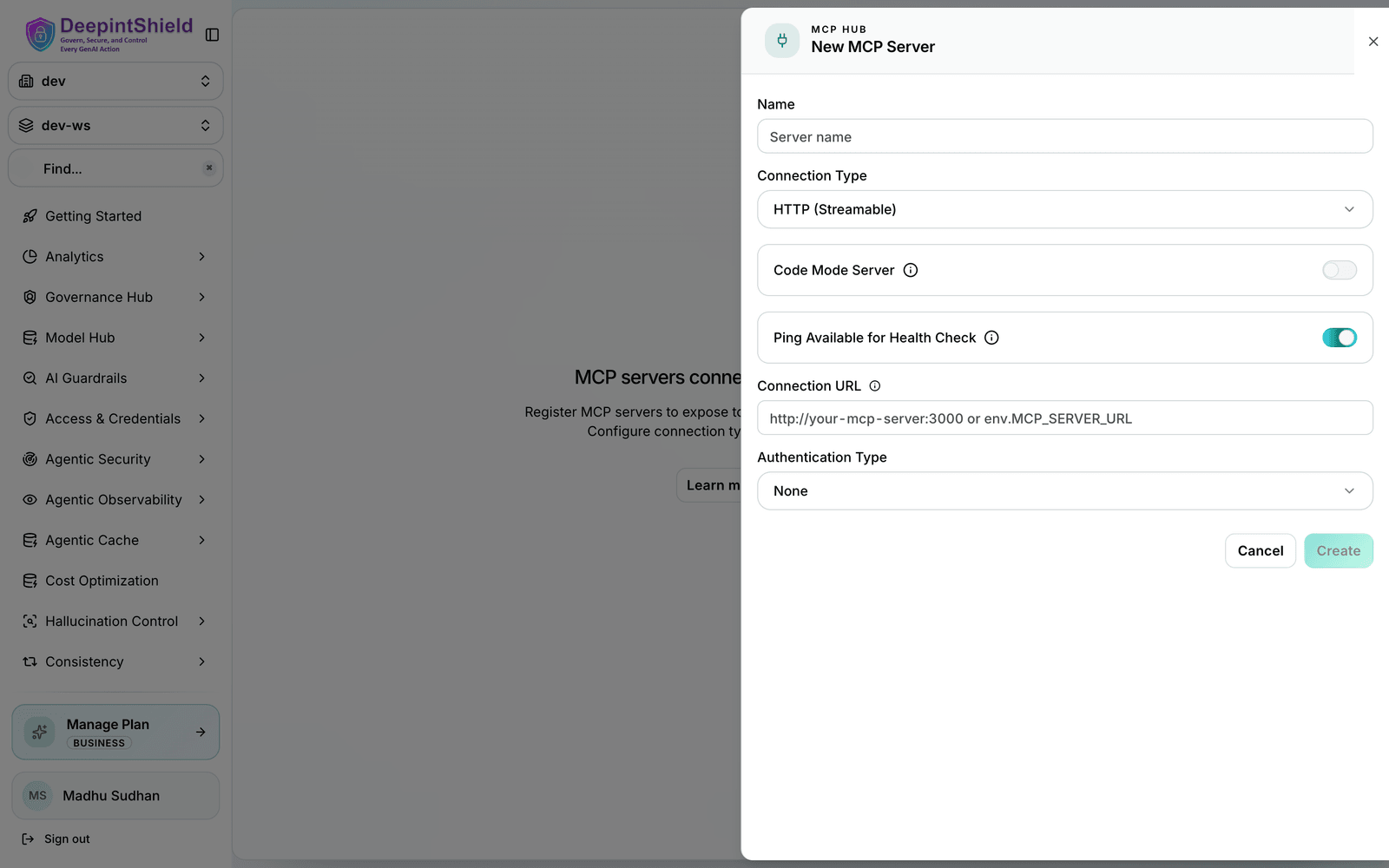
Once enabled, this client’s tools are no longer exposed directly. Instead, the model discovers them on demand and orchestrates them by writing a short script, keeping the request context compact.
Code Mode supports two binding levels that control how the model discovers tool definitions. This is a global setting that affects context efficiency, not how you call tools.
Tool definitions are grouped per server. Best for servers with few tools, or when you want simpler discovery (5-20 tools per server).
Each tool’s definition is loaded individually. Best for servers with many tools (30+ per server) or large/complex schemas, where you want minimal context bloat.
Binding level is managed from the Settings tab under Agentic → MCP Registry, and can be viewed in the MCP configuration overview:
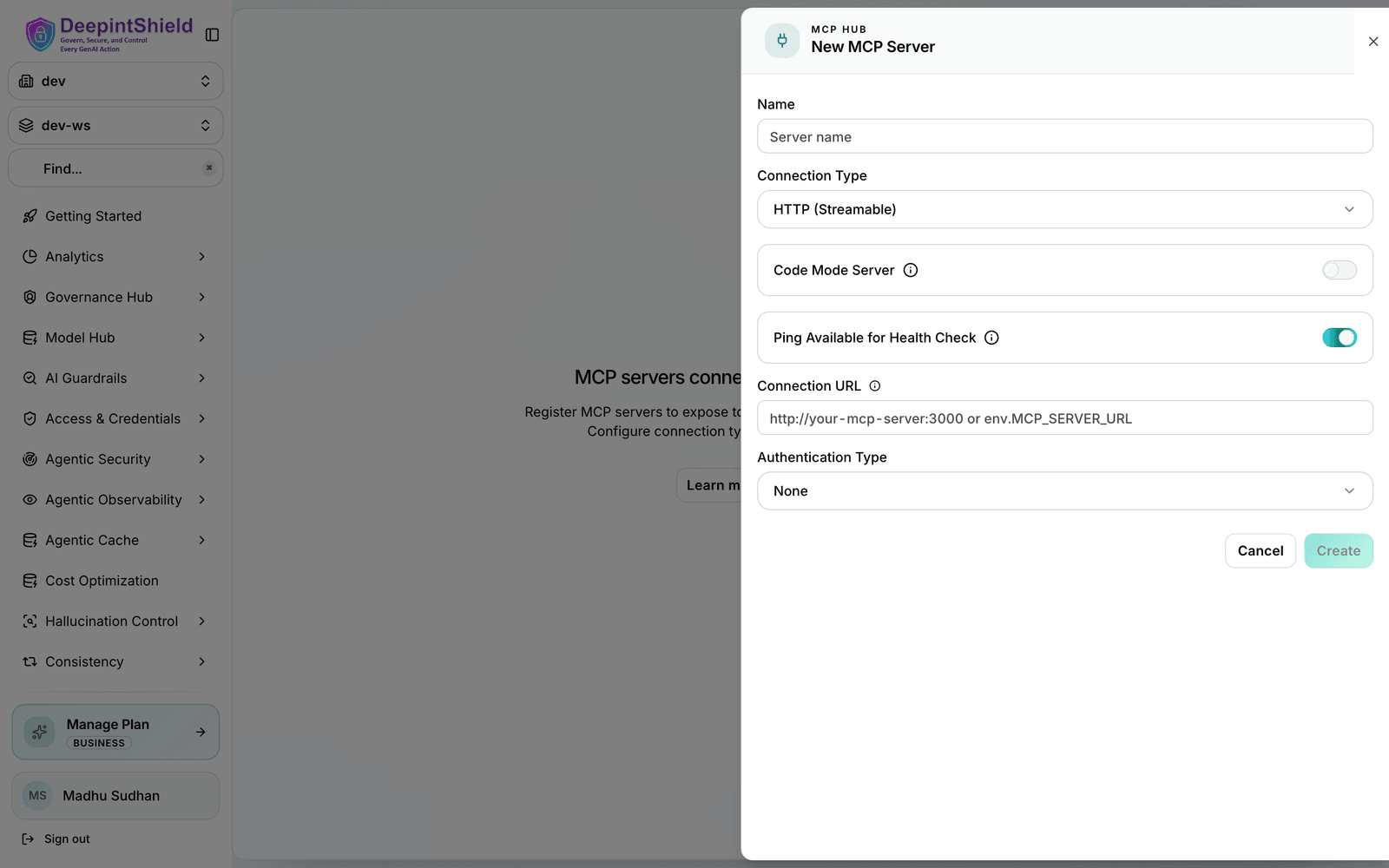
When you run Code Mode under Agent Mode, generated code is
eligible for autonomous execution only if every nested tool it calls is listed
in tools_to_auto_execute for its server. If the code touches an unlisted tool,
the outer request is returned to your application for review.
That list is not an authorization verdict. When canonical Agentic authorization is enabled, the
outer code-mode meta-call and every nested tool call each require an exact
Allow. A Deny, Require-approval, or unavailable dependency aborts execution;
shadow mode is not a bypass. In the example below, code that only calls
search is eligible for the autonomous loop, while code that calls
delete_video is returned to the application for review:
Example:
{ "name": "youtube", "tools_to_execute": ["*"], "tools_to_auto_execute": ["search"], "is_code_mode_client": true}In an illustrative workflow spanning ~10 servers and 150 tools (for example, “find matching products, check inventory, compare prices, get a shipping estimate, create a quote”), Code Mode reduced the example from 8–10 model turns to 3–4 and avoided repeatedly sending thousands of tool-definition tokens. Do not generalize that result without measuring your servers, prompts, selected model, generated code, failures, and concurrency. Include sandbox startup and tool-network time in the comparison.