

LibreChat
Open-source chat client supporting multiple providers
DeepIntShield provides OpenAI-, Anthropic-, and Gemini-compatible routes for the documented endpoints. Point each agent at the URL shape it expects (see Configuration below and the guide for your tool), then test its exact SDK version, streaming mode, tools, and error handling. That unlocks:
LibreChat
Open-source chat client supporting multiple providers
Open WebUI
ChatGPT-like open-source chat interface
Claude Code
AI-powered coding directly in your terminal
Codex CLI
OpenAI’s powerful code generation CLI
Gemini CLI
Google’s coding assistant with advanced reasoning
Qwen Code
Alibaba’s coding assistant
Opencode
Terminal-based coding assistant by SST
Cursor
AI-powered IDE with MCP integration and virtual key support
Zed Editor
High-performance editor with AI integration
Roo Code
AI-powered VS Code extension with multi-provider support
Agent integrations work with your existing DeepIntShield configuration. Ensure you have:
All agent interactions are automatically logged and can be monitored in the DeepIntShield dashboard. You can filter by provider, model, or search through conversation content to track your agents’ performance.
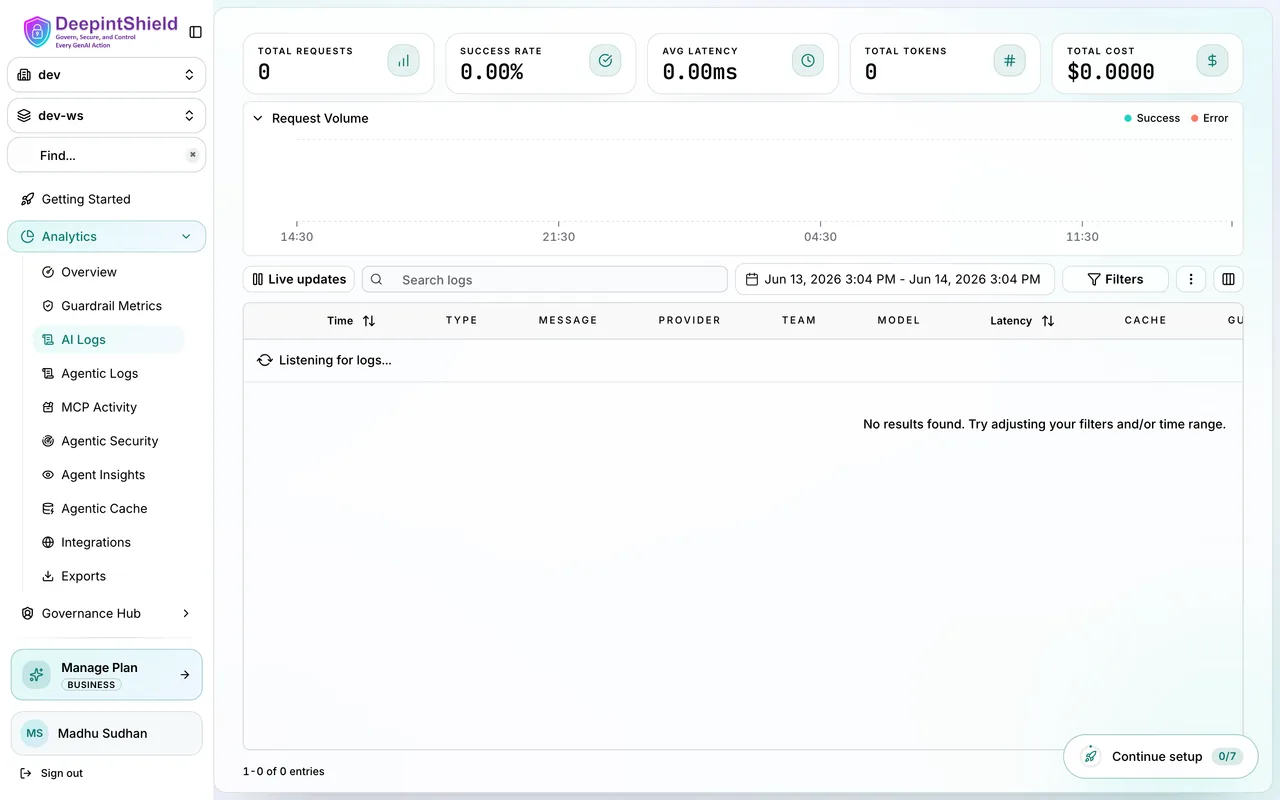 For complete monitoring capabilities, see Built-in Observability.
Connect any MCP-compatible client (Claude Code, Cursor, and other
MCP-compatible applications) to DeepIntShield’s MCP server at /mcp. Its
catalogue contains only tools allowed by the presented Virtual Key’s explicit
MCP bindings, and each call still passes canonical authorization when Agentic authorization is
enabled.
/mcp does not allow anonymous access. Add DeepIntShield with a valid Virtual
Key using Claude Code’s JSON configuration format:
claude mcp add-json deepintshield '{"type":"http","url":"https://app.deepintshield.com/mcp","headers":{"Authorization":"Bearer sk-ds-your-virtual-key"}}'Replace sk-ds-your-virtual-key with your actual DeepIntShield Virtual Key
(keys are prefixed sk-ds-).
Claude Code will only have access to the specific MCP tools permitted by the virtual key’s configuration. To grant access to additional tools, verify or modify the virtual key’s MCP tool permissions in the DeepIntShield dashboard.
You can connect any MCP-compatible client to DeepIntShield’s MCP server:
claude mcp add commandControl which tools each client can access using Virtual Keys:
For complete setup instructions and tool filtering options, see MCP Gateway URL.