

MCP Tool Filtering
For Astra Responses requests, permitted MCP schemas may be injected even when the SDK omits tools. Send extra_headers={"x-deepintshield-mcp-include-clients": ""} in Python to exclude MCP tools for one request. With curl, use -H "x-deepintshield-mcp-include-clients;" to transmit an explicitly empty header; a trailing colon suppresses the header instead. Request filters intersect with virtual-key permissions, and explicit empty filters remain deny-all.
Overview
Section titled “Overview”MCP Tool Filtering lets a Virtual Key (VK) define the hard outer boundary of MCP clients and tools a request may discover or attempt. That allow-list is necessary but not sufficient authorization: when canonical Agentic authorization is enabled, the resolved agent, Registry action, OpenFGA relationships, client generation, and arguments must still produce an exact Allow before execution.
Make sure you have at least one MCP client set up. Read more about it here.
What it does
Section titled “What it does”A Virtual Key’s MCP configuration controls the maximum set of tools requests using that key can attempt:
- Leave the Virtual Key’s MCP configuration empty (default) - No MCP tools are available. A request header cannot grant a tool that the key is not bound to.
- Configure MCP clients on the Virtual Key - The key’s configuration becomes
a strict execution eligibility list. A request-level
x-deepintshield-mcp-include-toolsvalue may shape discovery, but it cannot expand the persisted key binding or authorize another tool.
When you do configure MCP clients on a Virtual Key, set the allowed tools for each client:
- Select specific tools - Only the chosen tools from that client are available.
- Use the
*wildcard - All available tools from that client are eligible; later authorization still applies. - Leave the tool list empty - All tools from that client are blocked.
- Do not add a client at all - Every tool from that client is blocked.
Setting MCP Tool Restrictions
Section titled “Setting MCP Tool Restrictions”You can configure which tools a Virtual Key has access to via the Web UI.
- Go to Virtual Keys page.
- Create/Edit virtual key
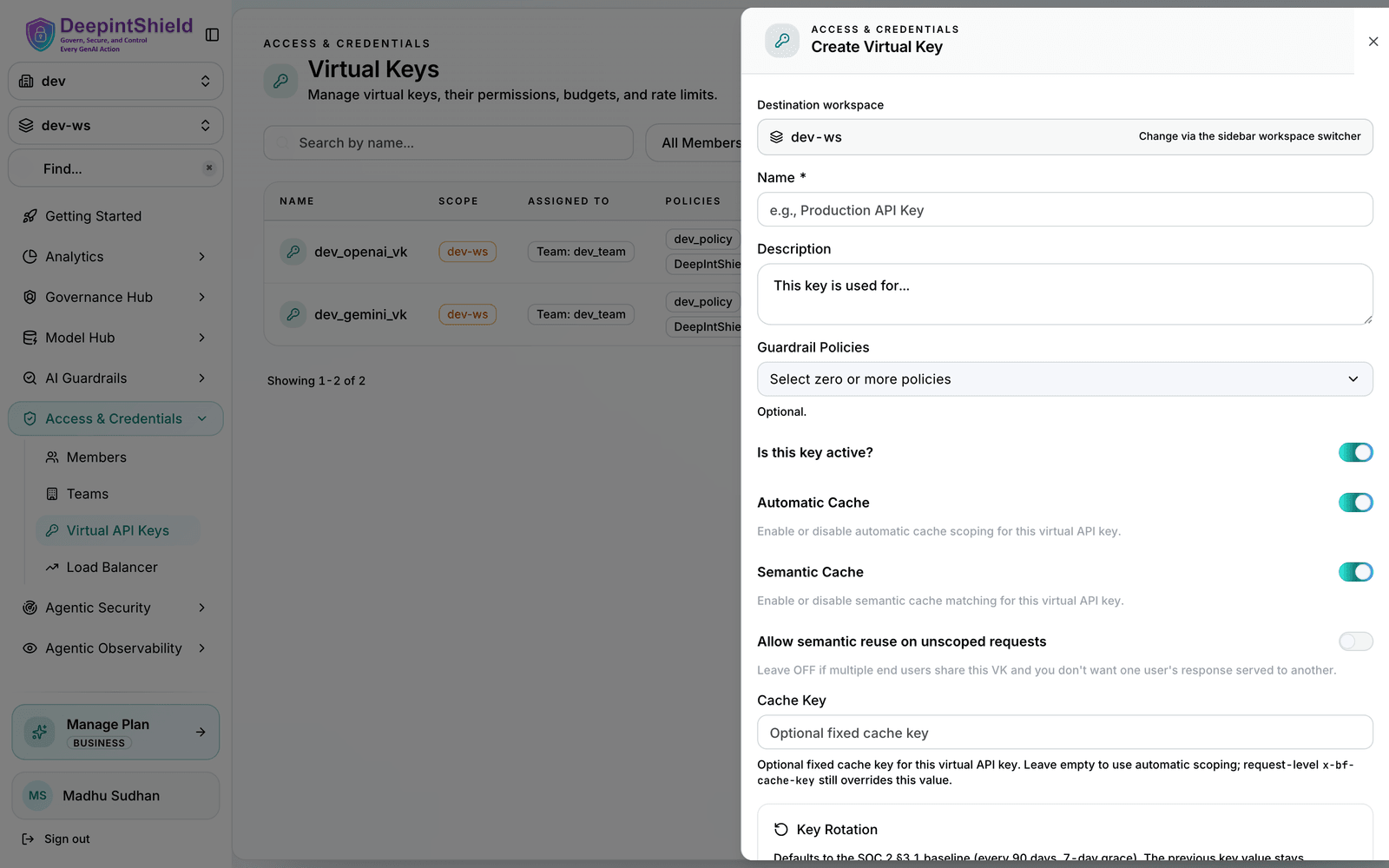
- In MCP Client Configurations section, add the MCP client you want to restrict the VK to
- Select the tools the VK may use. Use
*to allow every tool from this client; leaving the list blank blocks the client. - Click on the Save button
For example, to allow only the check-status tool from billing-client while
allowing all tools from support-client, add both clients in the MCP Client
Configurations section, set billing-client’s allowed tools to
check-status, and set support-client to the * wildcard. Leaving the
support list empty would block it. Any other MCP client is implicitly blocked
for this key.
Example Scenario
Section titled “Example Scenario”Available MCP Clients & Tools:
billing-client: with tools[create-invoice, check-status]support-client: with tools[create-ticket, get-faq]
Configuration:
billing-client-> Allowed Tools:[*](wildcard)support-client-> Allowed Tools:[*](wildcard)
Result:
All four tools—create-invoice, check-status, create-ticket, and
get-faq—are eligible for this key. Canonical authorization still decides each
invocation when enabled.
Configuration:
billing-client-> Allowed Tools:[check-status]support-client-> Not configured
Result:
Only check-status is eligible for this key. All other tools are blocked, and
later authorization still applies to check-status.
Configuration:
billing-client-> Allowed Tools:[](empty list)
Result: A request with this Virtual Key cannot access any tools. All tools from all clients are blocked.