

Microsoft Entra with a local gateway
Run test2.py on your laptop against a gateway on the same laptop at
http://localhost:8080. This walkthrough starts with Microsoft configuration,
then creates math-agent from DeepIntShield and authorizes its runtime, code,
and tool access. The existing arithmetic graph returns {'number': 21}.
The gateway holds the Entra credentials and exchanges tokens for the exact
child agent. Python holds its workspace Virtual Key and a durable runtime key;
it does not need LocalEntraCredential, a Microsoft secret, Azure CLI login, or
custom token-exchange code. This is an autonomous example, so its requester is
empty. Microsoft sign-in for human dashboard users is a separate
SSO setup.
The Microsoft portal screenshots below are unmodified reference images from Microsoft Learn, not screenshots of your tenant. Their sample names, IDs and selections differ from this walkthrough; use the values in each step. Click an image to view its full size. Images are copyright Microsoft and reproduced under the Microsoft documentation MIT license, with source and checksum records.
This walkthrough targets SDK and Server 3.2.0 or newer using local execution. If server-managed execution is enabled for your workspace, continue from the managed-execution guide after identity setup: the server runtime key and saved server run replace local rerun steps.
Before you start
Section titled “Before you start”- Have the complete repository checkout, its Go toolchain, Node.js/npm,
make, and Python 3.10 or newer available. The checkout’sgo.workspecifies the required Go version. - Reuse a reachable local OpenFGA authorization service, or have Docker running with Docker Compose available to start the persistent local services below.
- Use a Microsoft organizational tenant with Agent ID available. The Microsoft administrator needs permission to register applications and grant Graph application permissions. Microsoft documents Agent ID Administrator for adding a blueprint secret and Privileged Role Administrator for consent to Microsoft Graph application permissions. See Microsoft’s prerequisites.
- Use a local DeepIntShield organization/workspace with Agentic features enabled and an operator allowed to manage its identities, credentials and registration approvals. Keep the same organization/workspace throughout.
- Allow the gateway outbound HTTPS access to Microsoft login, signing-key and Graph endpoints. An Internet-accessible callback to the laptop is not needed for this application-token flow.
1. Start the updated local gateway
Section titled “1. Start the updated local gateway”Agentic authorization needs a reachable OpenFGA service. make run builds the
gateway; it does not start that dependency. If your existing local gateway
already has a working authorization service, reuse its host-reachable
OPENFGA_API_URL and skip the Compose setup below. Preserve its database and
the gateway’s existing application-data directory.
For a fresh laptop, start Docker, then from the repository root run:
cd deepintshield_serverdocker-compose -p deepintshield-local-authz \ -f tests/agentic-local/compose.yaml up -d postgres openfgacurl --fail --retry 10 --retry-connrefused --retry-delay 2 \ http://127.0.0.1:18081/healthzUse docker compose in place of docker-compose if the Compose plugin is
installed. This repository fixture starts PostgreSQL and the OpenFGA migration
dependency before OpenFGA. Selecting only these services does not start its
optional Keycloak test issuer; this walkthrough uses Microsoft Entra.
OpenFGA is exposed to the laptop at 127.0.0.1:18081; PostgreSQL uses
127.0.0.1:55432. If either port is already occupied, check whether the running
service is the authorization stack you should reuse before starting another
stack. The checked-in fixture credentials and loopback-only services are for
local development. The deepintshield-local-authz project has a persistent
postgres_data volume. Keep the same project name on later starts and do not
run down --volumes, which deletes its authorization data.
After the health check succeeds, stop an older gateway process using port 8080
and start the updated gateway from the same deepintshield_server directory:
OPENFGA_API_URL=http://127.0.0.1:18081 \AGENTICNEW_GAF_REQUIRED=true \make run LOCAL=1 HOST=localhost PORT=8080 APP_DIR="$HOME/.config/deepintshield"For an existing authorization service, replace only the URL with its reachable
host endpoint; a Docker-only hostname such as openfga:8080 does not normally
resolve from the native gateway process. These two settings configure gateway
infrastructure, not Microsoft credential environment references.
AGENTICNEW_GAF_REQUIRED=true makes startup fail if its authorization boundary
cannot initialize. Fix that failure instead of removing the setting.
make run installs UI dependencies, builds the current UI and backend, and
starts the gateway. Use your existing application-data directory if it
differs; changing the directory selects different local configuration and data.
Open http://localhost:8080, complete initial local account/organization/workspace setup if needed, and sign in. Keep this server terminal running; use a second terminal for Python later.
Stored credentials are encrypted automatically. A new installation creates
provisioning-credentials.key in its persistent application-data directory;
an existing configured encryption key continues to be used. Preserve the key
with config.db and the rest of your gateway data across restarts and backups.
You do not need to edit config.json or configure encryption_key for this
fresh local path. If credential storage is unavailable, repair access to that
data directory; do not disable encryption.
2. Microsoft: select the tenant and sponsor
Section titled “2. Microsoft: select the tenant and sponsor”- Sign in to the Microsoft Entra admin center.
- Switch to the intended organization directory.
- Under Entra ID → Overview, copy its Tenant ID as
TENANT_ID. - Open Entra ID → Users → All users.
- Select the accountable person, for example Alex Morgan.
- Copy that user’s Object ID as
SPONSOR_USER_OBJECT_ID.
These labels are placeholders for values you record, not environment variables that must be created. Keep application client IDs, directory object IDs, and secret values distinct:
| Recorded value | Where it is used |
|---|---|
TENANT_ID | Provider directory tenant and Microsoft authority |
GATEWAY_CLIENT_ID | Gateway token-verification audience |
BLUEPRINT_CLIENT_ID | Parent Agent ID blueprint |
| Blueprint secret Value | Gateway runtime credential only |
MANAGEMENT_CLIENT_ID | Provisioning management application |
| Management secret Value | Provisioning credential only |
SPONSOR_USER_OBJECT_ID | Microsoft sponsor for created identities |
| Provisioned child identity ID | Exact math-agent identity and runtime review |
3. Microsoft: register the gateway API
Section titled “3. Microsoft: register the gateway API”- Open Entra ID → App registrations → New registration.
- Enter Name →
deepintshield-gateway-local. - Select Accounts in this organizational directory only (single tenant).
- Leave Redirect URI empty and click Register.
- Copy Application (client) ID as
GATEWAY_CLIENT_ID. - Under Owners, add the responsible administrator if no owner is present.
- Open Expose an API → Application ID URI → Add.
- Accept or enter
api://GATEWAY_CLIENT_ID, replacing the placeholder with the actual application GUID, and save it.
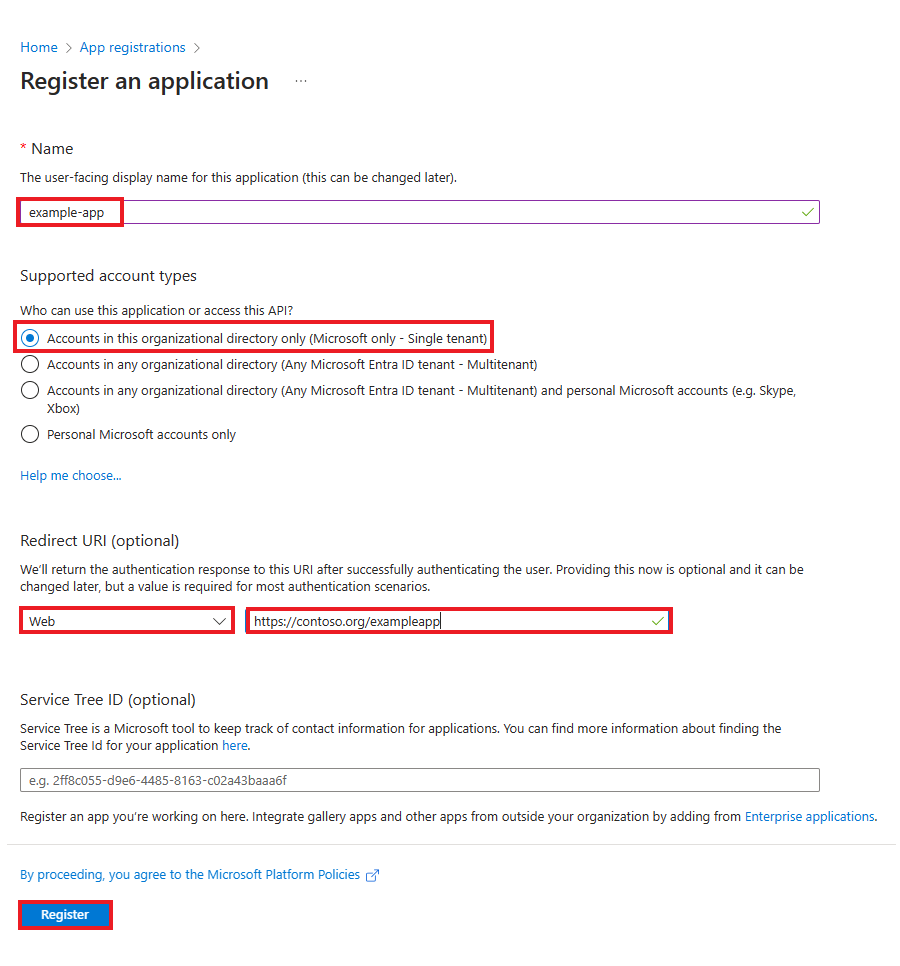
Microsoft reference: app registration. Enter deepintshield-gateway-local, select single tenant, and leave the redirect URI empty. The example image contains a redirect URI; do not copy it for this flow. Microsoft source.
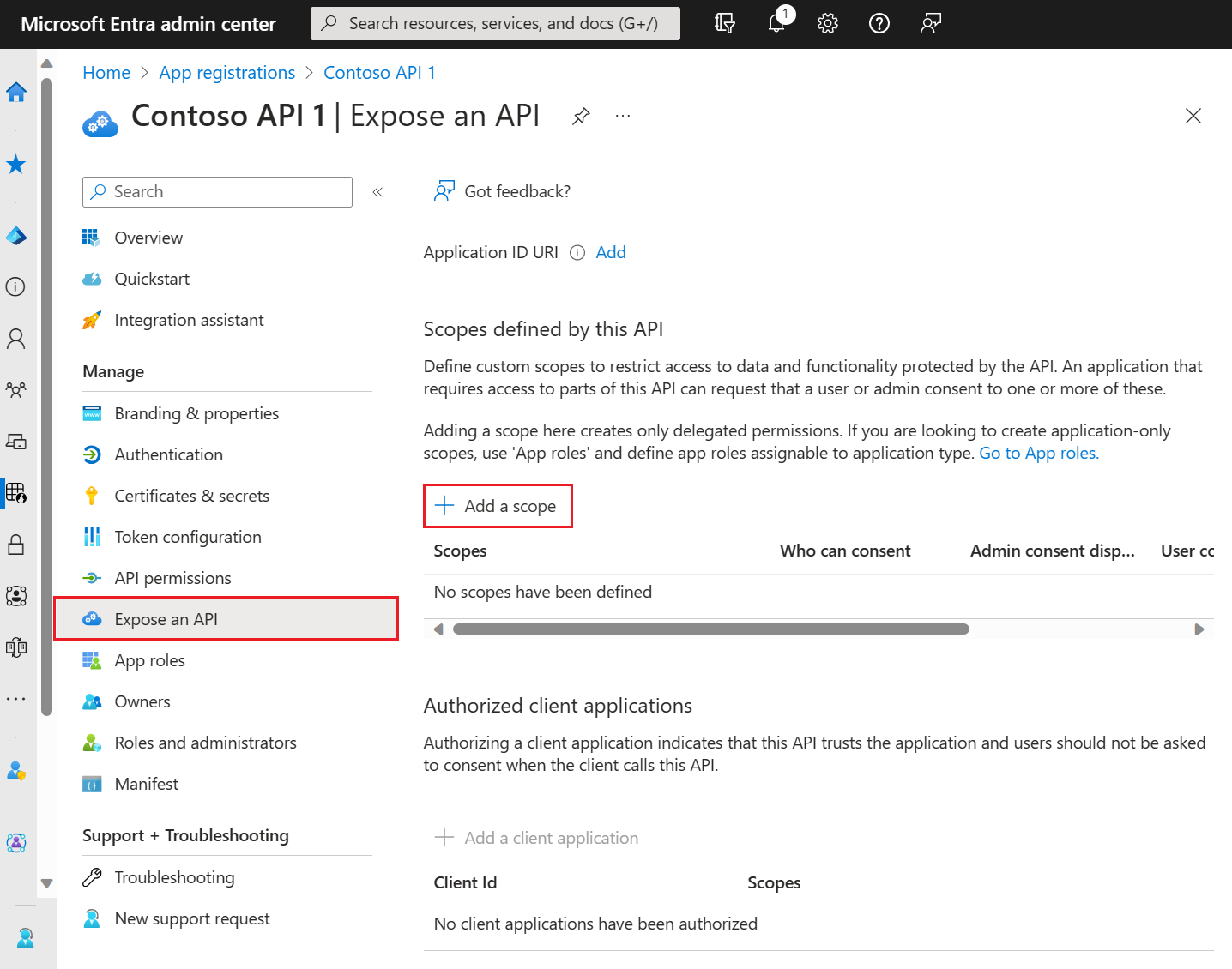
Microsoft reference: save the Application ID URI as api://GATEWAY_CLIENT_ID using your GUID. The image highlights Add a scope, but this autonomous walkthrough does not require a delegated scope. Microsoft source.
No delegated scope is required for this autonomous application-role example. See Microsoft’s registration and API configuration guides.
Set the access-token version:
- In this gateway registration, open Manifest.
- Inside the existing
apiobject, setrequestedAccessTokenVersionto2. - Preserve the other manifest properties and click Save.
The relevant property is:
{ "api": { "requestedAccessTokenVersion": 2 }}This is an excerpt, not a replacement manifest. See Microsoft’s API application properties.
4. Microsoft: add the gateway application role
Section titled “4. Microsoft: add the gateway application role”Within deepintshield-gateway-local, open App roles → Create app role:
| Field | Value |
|---|---|
| Display name | Gateway Invoke |
| Allowed member types | Applications |
| Value | Gateway.Invoke |
| Description | Allow an approved agent to invoke DeepIntShield |
| Enable this app role | Checked |
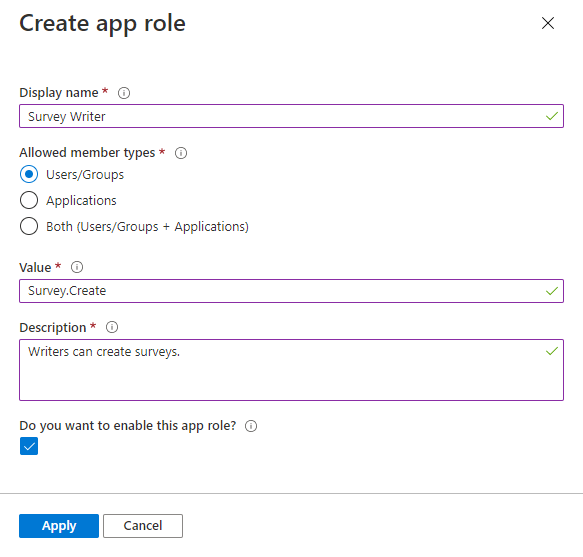
Microsoft reference: use Applications and Gateway.Invoke from the table. The image’s Users/Groups and Survey.Create selections are examples for a different application. Microsoft source.
Click Apply. The role value is case-sensitive. Defining it does not assign it to an agent; the provisioning job below makes that assignment. See Microsoft application roles.
5. Microsoft: create the Agent ID blueprint
Section titled “5. Microsoft: create the Agent ID blueprint”- Open Entra ID → Agents → Agent blueprints.
- Select New agent blueprint (Preview).
- Name it
deepintshield-local-blueprint, then select Next. - On Owners & Sponsors, select the responsible owner and sponsor.
- Select Next → Create → Go to agent blueprint.
- Record the Blueprint Application ID as
BLUEPRINT_CLIENT_ID.
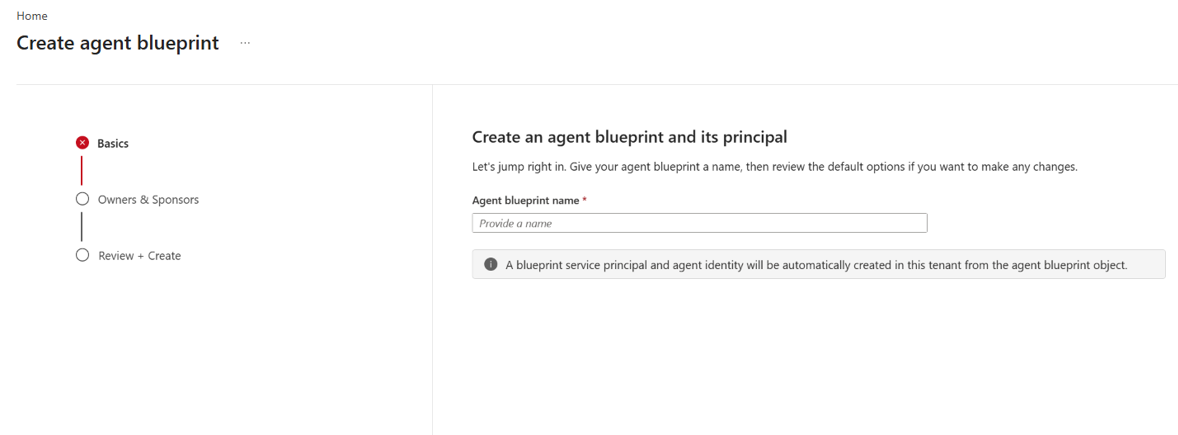
Microsoft reference: create the Agent ID blueprint here and name it deepintshield-local-blueprint; then set its owner and sponsor. Microsoft source.
Use this Agent ID wizard, rather than creating another ordinary app registration. It creates the blueprint and its blueprint principal together. If the Agent ID page is unavailable, resolve the tenant’s feature availability or administrator role before continuing. See Create an agent identity blueprint.
6. Microsoft: create the development blueprint secret
Section titled “6. Microsoft: create the development blueprint secret”Inside deepintshield-local-blueprint:
- Open Developer settings → Credentials.
- Select Client secrets → New client secret.
- Enter description
deepintshield-local-runtime. - Choose an expiration allowed by your organization and click Add.
- Immediately copy the secret Value; it is shown only at creation.
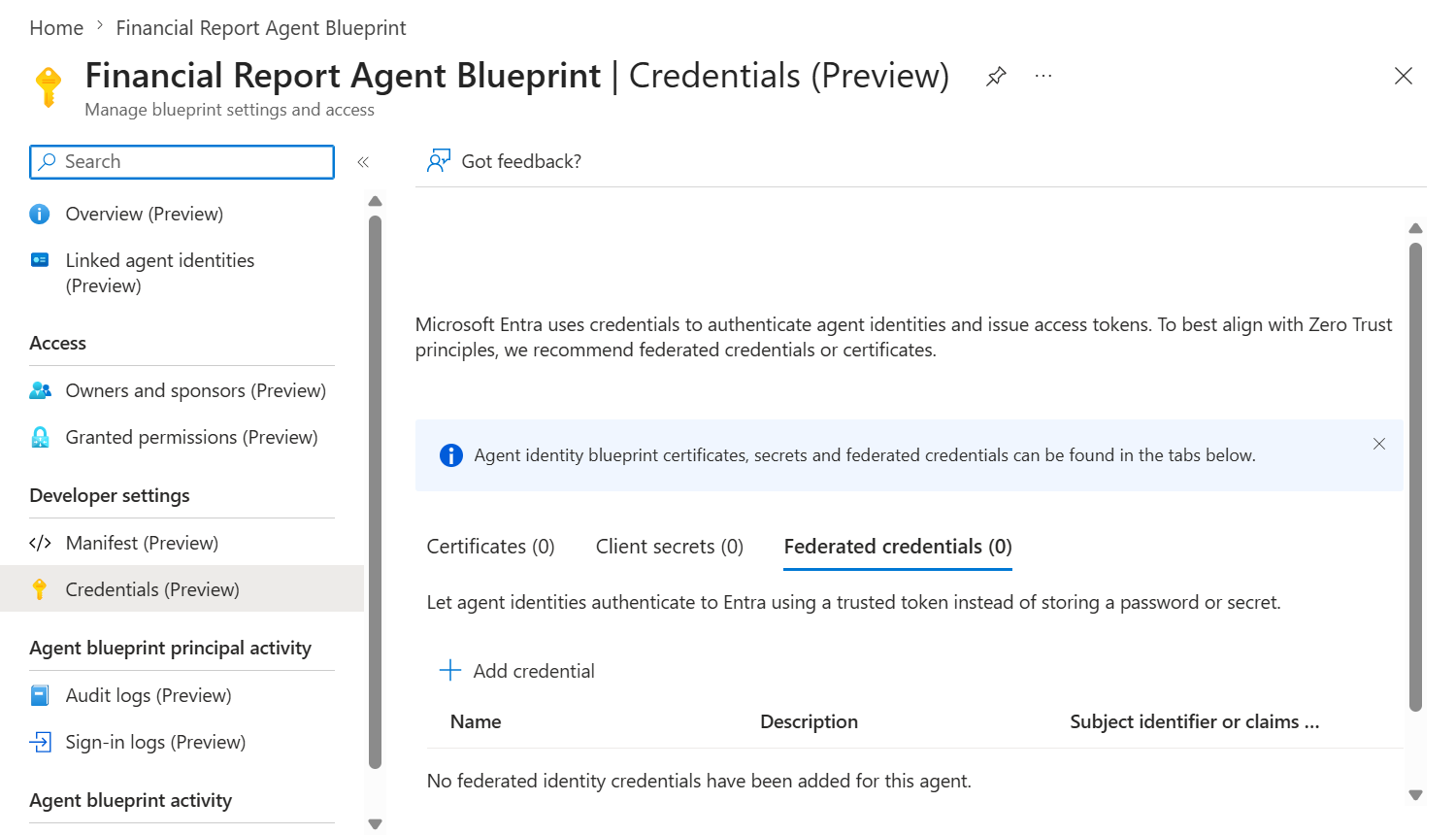
Microsoft reference: the image opens Federated credentials. For this local development step, select Client secrets on the same page and create the blueprint secret. Microsoft source.
This is the blueprint runtime secret, not the provisioning application’s secret. See Manage agent identity blueprints. Keep this local-development credential scoped to the intended development setup; see Moving to a hosted gateway before using this configuration in production.
7. Microsoft: register the provisioning management application
Section titled “7. Microsoft: register the provisioning management application”- Open Entra ID → App registrations → New registration.
- Name it
deepintshield-local-provisioning. - Select single tenant, leave the redirect URI empty, and click Register.
- Copy Application (client) ID as
MANAGEMENT_CLIENT_ID. - Under Owners, add the responsible administrator.
- Open Certificates & secrets → Client secrets → New client secret.
- Set description
deepintshield-local-provisioning, select an allowed expiration, and click Add. - Immediately copy its secret Value, not its Secret ID.
This separate application calls Microsoft Graph to manage child identities. Its secret will go in Provisioning → Management credentials. See Microsoft application credentials.
8. Microsoft: grant and consent to management permissions
Section titled “8. Microsoft: grant and consent to management permissions”In deepintshield-local-provisioning:
- Open API permissions → Add a permission.
- Select Microsoft Graph → Application permissions.
- Add the following permissions.
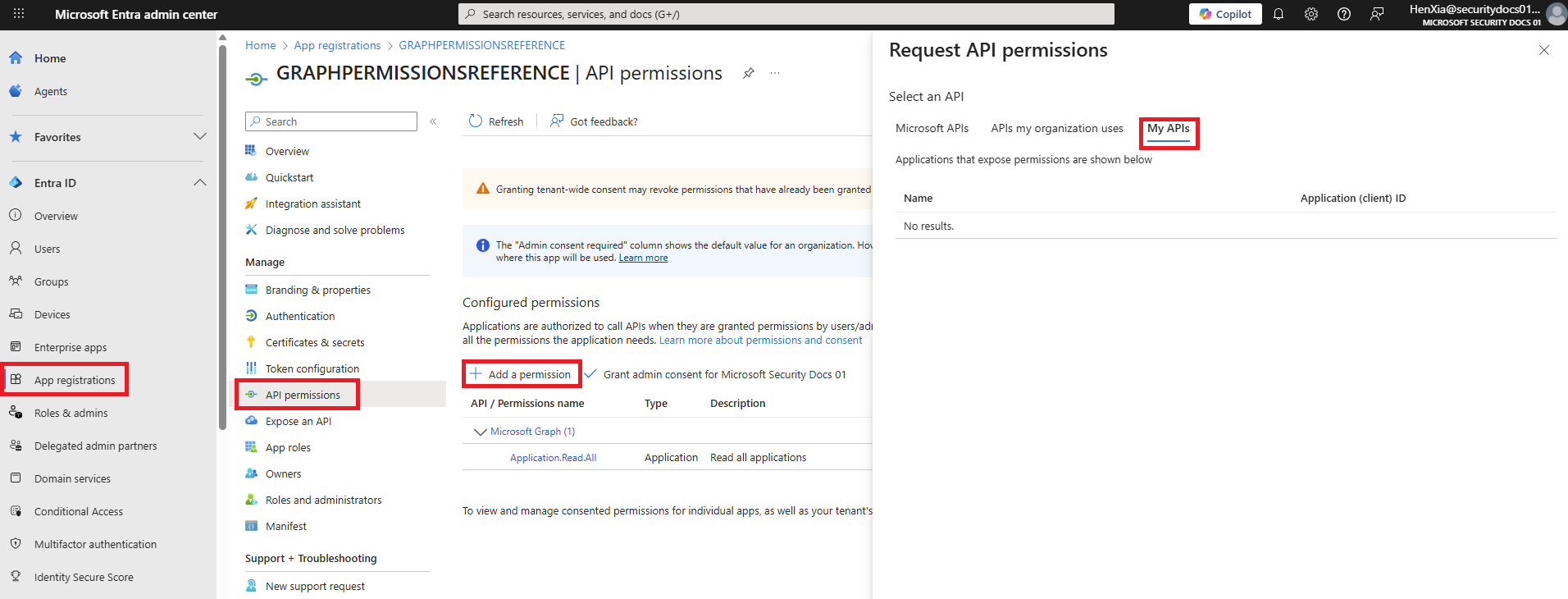
Microsoft reference: open Add a permission. The image selects My APIs; use Microsoft APIs → Microsoft Graph → Application permissions for the management permissions listed below. Microsoft source.
| Application permission | Required use in this walkthrough |
|---|---|
AgentIdentity.Read.All | Read/check agent identities |
AgentIdentity.Create.All | Create the child identity |
Application.Read.All | Resolve the configured gateway API and app role |
AppRoleAssignment.ReadWrite.All | Assign Gateway.Invoke to the child |
- Click Add permissions.
- Have an authorized administrator select Grant admin consent for your tenant.
- Confirm each permission shows Granted.
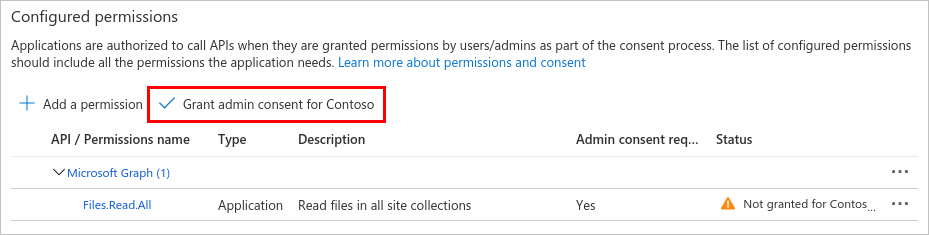
Microsoft reference: use Grant admin consent after adding this guide’s four application permissions. Files.Read.All and the other sample rows in the image are not the permission list for this walkthrough. Microsoft source.
The final two permissions enable the optional automatic role-assignment step
used below. These are privileged Microsoft management permissions; configure
them on the dedicated management application. DeepIntShield’s opt-in
implementation limits its assignment to the configured gateway’s
Gateway.Invoke role, but that application-level limit does not narrow the
Microsoft permission itself.
Microsoft documents the required permissions for reading identities, creating identities, and assigning application roles.
9. DeepIntShield: select the workspace and enable Agentic Security
Section titled “9. DeepIntShield: select the workspace and enable Agentic Security”- Return to http://localhost:8080 and sign in.
- In the sidebar scope switcher (Tenant · Workspace), select the intended tenant and workspace.
- Open Agentic → Agents → Needs attention.
- Turn Agentic Security On.
Use the local URL in both the browser and Python. An existing hosted workspace and its Virtual Key are not automatically present in this local gateway. Confirm the Agentic pages load successfully; missing routes or an authorization initialization error mean the dependency setup in step 1 is not ready.
Source scanning remains required. The deterministic source scanner is built in; if your workspace additionally requires model-based source review, its selected scanner Virtual Key, model and provider must work before registration can finish. Keep that required review enabled and repair scanner errors rather than approving unscanned code. The arithmetic graph makes no LLM request, but an explicitly configured model-based scanner does.
10. DeepIntShield: confirm the human owner and reporting key
Section titled “10. DeepIntShield: confirm the human owner and reporting key”- Open Agentic → Identities → Users.
- Reuse the accountable person’s active human entry if it exists.
- Otherwise select Add user, enter the person’s display name and email, set Kind → User (human) and Status → Active, then Create user.
- Open Access & Credentials → Virtual API Keys.
- Reuse an active key belonging to this workspace, or select Add Virtual Key.
- For a new key, check the read-only Destination workspace (it follows the sidebar scope switcher), enter a name, select its provider configuration, then click Create and securely retain the key.
The current Virtual Key creation form requires a Model Hub provider configuration. If none exists, configure one in Model Hub first. The arithmetic graph itself makes no LLM call. See provider configuration and Virtual Keys.
The local human directory entry establishes accountability in DeepIntShield. The Microsoft sponsor uses the separate Microsoft user Object ID from step 2. Creating a DeepIntShield owner does not create or sign in a Microsoft user.
11. DeepIntShield: configure the Entra verifier
Section titled “11. DeepIntShield: configure the Entra verifier”Open Agentic → Identities → Identity providers and add a provider:
| Field | Value |
|---|---|
| Name | local-entra |
| Provider type | Microsoft Entra Agent ID |
| Enabled | On |
| Directory tenant | TENANT_ID |
| Audience (verify) | GATEWAY_CLIENT_ID - the GUID |
| Blueprint application | BLUEPRINT_CLIENT_ID |
| Agent admission | Shared agents · explicit identity list |
Confirm the generated values, substituting your tenant GUID:
Authority: https://login.microsoftonline.com/TENANT_ID/v2.0JWKS URI: https://login.microsoftonline.com/TENANT_ID/discovery/v2.0/keysLeave the new admission list empty; it admits nobody until provisioning adds
the child. Do not enter a placeholder/default child ID. The verification
audience is the gateway application’s GUID, not http://localhost:8080 or
api://GATEWAY_CLIENT_ID.
12. DeepIntShield: configure the gateway token exchange
Section titled “12. DeepIntShield: configure the gateway token exchange”In the same provider:
- Keep Runtime authentication → Gateway exchanges Entra token · recommended, the default for a new Entra provider.
- Turn Gateway exchange enabled on.
- Select Blueprint runtime credential → Client secret · development.
- Paste step 6’s secret into Blueprint client secret VALUE.
- Check This gateway runtime connection is for development.
- Leave Optional token scope settings unchanged for the default
api://GATEWAY_CLIENT_IDAPI identifier. - Click Save, then Test; confirm the provider is Validated.
For a custom API identifier, set Optional token scope settings → Gateway API
application ID URI to that identifier without /.default. The gateway adds
that suffix to token requests; it still verifies the GUID audience.
Provider validation checks the verification configuration. The real blueprint credential and child exchange are exercised when the runtime submits proof.
Default for new registrations, in the same provider form, decides which Entra provider receives a provisional runtime key from an agent that runs before its identity exists. A workspace with one validated gateway-exchange provider uses it automatically; with several, turn the switch on for exactly one. This walkthrough creates the identity in step 14 before the first run, so the switch is optional here.
13. DeepIntShield: authorize provisioning
Section titled “13. DeepIntShield: authorize provisioning”Open Identities → Provisioning → Authorize provisioning:
| Field | Value |
|---|---|
| Connection name | local-entra-provisioning |
| Management provider | Microsoft Entra |
| Workload verification provider | local-entra |
| Management URL | https://graph.microsoft.com |
| Allowed scopes | Leave empty for this setup |
| Assign Gateway.Invoke when creating agents | Checked |
| Management credentials | Paste credentials |
| Management application (client) ID | MANAGEMENT_CLIENT_ID |
| Client secret VALUE | Management secret from step 7 |
| Sponsor user object IDs | SPONSOR_USER_OBJECT_ID |
| Sponsor group object IDs | Leave empty |
| Allowed existing child identity IDs | Leave empty for this new identity |
| Credential delivery reference | Leave empty if displayed |
| Connection enabled | On |
- Verify the inherited tenant, blueprint, issuer, and audience.
- Click Save connection.
- Under Connections, select Check connection.
- Under Activity, wait for Completed.
No credential environment reference is required for Paste credentials. The connection check reads Microsoft identity availability; it does not create the child or prove that every later role assignment will succeed. The creation job exercises those permissions next.
14. DeepIntShield: create the child identity for math-agent
Section titled “14. DeepIntShield: create the child identity for math-agent”In Provisioning, select Create or link identity → Create new:
| Field | Value |
|---|---|
| Connection | local-entra-provisioning |
| Agent key | math-agent |
| Display name | math-agent |
| Accountable owner | The active human from step 10 |
| Environment | development |
Click Create identity, then wait for its Activity job to show Completed. Record the resulting child identity ID.
This opt-in job creates the child, assigns Gateway.Invoke, adds the exact
child to the verifier’s admission list, and declares agent:math-agent against
that identity. Do not create a second child or click Declare again after
success. This reserves the expected identity; it does not prove the laptop’s
identity or approve code/access.
If the logical agent already has a matching created identity/declaration, reuse it. Check identity can reconcile the grant for managed identities when the connection opted in. Linked identities remain read-only; their Microsoft administrator supplies the invocation grant. See provisioning records and recovery.
15. Laptop: install the SDK and configure test2.py
Section titled “15. Laptop: install the SDK and configure test2.py”Open a second terminal at the repository root, activate the Python environment you use for the script, and install this checkout:
python3 -m pip install -U './deepintshield[runtime,langgraph]'On a fresh laptop, create an isolated environment first with
python3 -m venv .venv and source .venv/bin/activate. Use the same
python3 interpreter for installation and execution. The two-run route below
needs SDK 3.2.0 or newer and a gateway build containing deferred activation.
Export your work e-mail in the shell that will run the script.
DEEPINTSHIELD_REGISTERED_BY names you as the registering developer: the
gateway maps it to a person in the workspace directory, proposes that person
as the accountable owner, and e-mails you when the decision is made. The
address is not verified and grants nothing:
export DEEPINTSHIELD_REGISTERED_BY='<your work e-mail>'Do not put your own address in DEEPINTSHIELD_REQUESTER for this purpose. The
requester is the person the agent acts for and changes authorization; this
autonomous example keeps it empty.
For an existing test2.py, keep its arithmetic graph and
DeepintShield.from_env(). Set its agent name to math-agent, gateway URL to
http://localhost:8080, and requester to an empty string for this autonomous
test. If the file assigns those variables itself, update/remove those
assignments: they override values supplied by the shell. Do not assume an
existing file still uses the desired name. If you retain another name, use
that same name in provisioning and review.
The following complete example prompts for the local workspace Virtual Key
without echoing it or writing it into source. Save it as test2.py for a fresh
example; do not overwrite unrelated application code:
import osfrom getpass import getpassfrom typing import TypedDict
os.environ["DEEPINTSHIELD_AGENT_NAME"] = "math-agent"os.environ["DEEPINTSHIELD_BASE_URL"] = "http://localhost:8080"os.environ["DEEPINTSHIELD_REQUESTER"] = ""if not os.environ.get("DEEPINTSHIELD_VIRTUAL_KEY"):    os.environ["DEEPINTSHIELD_VIRTUAL_KEY"] = getpass("Local workspace Virtual Key: ")
from deepintshield import DeepintShieldfrom langgraph.graph import END, START, StateGraph

class State(TypedDict):    number: int

def add_two(state: State):    return {"number": state["number"] + 2}

def multiply_by_three(state: State):    return {"number": state["number"] * 3}

with DeepintShield.from_env() as shield:    builder = StateGraph(State)    builder.add_node("add_two", add_two)    builder.add_node("multiply_by_three", multiply_by_three)    builder.add_edge(START, "add_two")    builder.add_edge("add_two", "multiply_by_three")    builder.add_edge("multiply_by_three", END)    graph = builder.compile()    print(graph.invoke({"number": 5}))
The SDK discovers the provider’s broker mode. The runtime extra supplies
cryptography and key storage; the azure extra is not required for this
laptop’s approved-key broker path. Microsoft credentials stay on the gateway.
16. Run once: the SDK enrols its key and reports pending
Section titled “16. Run once: the SDK enrols its key and reports pending”export DEEPINTSHIELD_REGISTERED_BY='<your work e-mail>'python3 test2.pySupply the same local workspace Virtual Key if prompted. The first run reports discovery, enrolls a public runtime key against step 14’s declaration (or, when the identity does not exist yet, as a provisional key bound to the registration) and stops with one line:
Registration pending. Reference <registration id> · runtime key SHA256:<thumbprint>. Contact your administrator. You will be notified at <email>.Keep the reference and the SHA256: thumbprint. You are not shown a review link
and you cannot approve your own agent. The closing sentence,
You will be notified at <email>., appears only when the gateway confirmed
your address. The workspace administrators receive a review-needed e-mail and
you receive a pending receipt, both sent from the platform no-reply mailbox
(SMTP_FROM_EMAIL) when this gateway has its platform SMTP settings. A local
gateway started without them keeps the messages queued and sends nothing; that
does not block the walkthrough, because the registration is listed under
Needs attention either way. See
Registration notifications.
If the run is refused with registration_requester_mismatch, this agent is
already being registered under a different e-mail. Export the e-mail it was
first registered with, or ask an administrator to deny the pending
registration.
17. One review sitting: identity, runtime key, code and access
Section titled “17. One review sitting: identity, runtime key, code and access”An administrator who is not the agent’s owner completes everything in one
visit. Do not run test2.py again before this sitting ends. An administrator
who exported their own sign-in e-mail as DEEPINTSHIELD_REGISTERED_BY cannot
record the decision. In a one-person setup, export a different registering
e-mail before step 16, or approve immediately after the agent’s next run
(three runs).
- Open Agentic → Agents → Needs attention and select Review on the
math-agentregistration. The header showsRegistered by <email>with Given by the developer with the virtual key. Not verified. The Accountable owner is proposed from that e-mail: select Confirm owner or choose another person. - In Identity & owner, confirm Identity provider → local-entra and the child created in step 14, or create or link it here. Until the identity exists, a provisional runtime key shows the Provisional badge and Runtime key received. Create or link the agent identity in Step 1, then authorize this key.; authorizing it earlier is refused with
runtime_binding_identity_missing. - In Runtime access, expand Details and match Agent, Entra child and Provider to this setup. Compare Key fingerprint with the
SHA256:thumbprint from step 16, select Authorize runtime key, choose Runtime identity policy → Approved runtime key · any host, then Confirm runtime authorization. This proves possession of that key only; it attests neither laptop hardware nor a cloud account. - Open Code & changes and wait for the Code scan to complete. Review the scan summary and any Findings; the console shows artifact and finding counts, not the raw source.
- Open Tools & access and select
add_two → invokeandmultiply_by_three → invoke. For these pure arithmetic functions, confirm action class read and risk low after inspecting their code. - Open Validate changes and select Validate & continue if it is shown.
- Open Review & decide, select Approve now, activates on the agent’s next run and confirm with Approve now · activates on next run. The card shows Decision recorded and lists the actions that activation will grant, here
add_two → invokeandmultiply_by_three → invoke; the registration stays pending until the next run, and the registrant receives the decision e-mail.
The reviewer cannot be the accountable owner: the dialog shows You are this agent’s owner. Another administrator must approve it. if you review your own agent. Do not use Approve as VK-trusted (development only) to bypass missing Entra proof; it is offered only while the workspace allows it and cannot be deferred. The two arithmetic actions need no extra custom resource permissions, roles, groups or human delegation unless your workspace policy explicitly adds them.
18. Run again: the approved agent executes
Section titled “18. Run again: the approved agent executes”python3 test2.pyThe gateway verifies the runtime key and the Entra exchange and applies the recorded decision before answering. The decision grants every action the administrator selected, so the whole graph runs in this one execution. The expected result is:
{'number': 21}The review now shows Runtime proof and Entra exchange as Verified
and the decision as Applied. If test2.py changed after the decision was
recorded, the run reports pending again instead: the review shows Stale
decision · The agent’s code changed after the decision was recorded., the
administrators and the developer are e-mailed that the decision is stale, and
the registration needs a new review.
Inspect Agentic → Activity → Runs and Decisions. Each protected action still passes the current runtime policy; previous approval does not override revocation, quarantine, changed source or missing access.
The SDK preserves its private runtime key in the native keyring or a protected
local file. Its default descriptor directory is
~/.deepintshield/runtime-keys. Preserve that storage, the gateway URL spelling,
agent name and associated active Virtual Key across runs. A new runtime key
needs a new authorization; deleting the directory is not a troubleshooting
shortcut.
What is configured once and what repeats?
Section titled “What is configured once and what repeats?”| Task | Frequency |
|---|---|
| Microsoft API, blueprint, management app and consent | Once for the intended tenant/environment and trust boundary |
| DeepIntShield provider and provisioning connection | Once per workspace/provider |
| Child identity and code/access approval | Per logical agent and security boundary |
| Runtime-key authorization | Per new deployment key |
| Human owner entry | Once per accountable person; one owner can own many agents |
| Script execution and token refresh | Reuse the approved identity on later runs |
| Credential renewal and consent changes | When credentials expire or authorization changes |
| Registration e-mails | Automatic on pending, recorded decision, approval and denial; sent from the platform no-reply mailbox (SMTP_FROM_EMAIL), with no separate configuration |
With automatic Gateway.Invoke assignment enabled, another child under this
configured blueprint can be created from DeepIntShield. An administrator still
returns to Microsoft for tenant/blueprint configuration, expiring credentials,
or permission changes. A new person starting the same autonomous deployment
does not need a new child identity; acting on behalf of a human is a different
delegation flow.
Troubleshooting
Section titled “Troubleshooting”| Symptom | Check next |
|---|---|
| Gateway exchanges Entra token or Paste credentials is missing | Rebuild/restart the current gateway and UI; reinstall the current SDK in the script’s interpreter. |
| Gateway startup reports required GAF initialization failure, or Agentic routes are unavailable | Start/reuse OpenFGA, check its health and the gateway process’s host-reachable OPENFGA_API_URL, and keep AGENTICNEW_GAF_REQUIRED=true. Preserve the authorization database and application data. |
| Identity does not match | Match workspace, agent name, expected declaration, provider and exact child. math-agent and math-agent-3 are different agent keys. Use the gateway API GUID audience and the blueprint’s application ID. Rerun for fresh proof. |
| Workload proof not observed | Expected until the run after the sitting. With the identity declared and one authorized key, record the decision; the next run supplies both the runtime-key and Entra-exchange proof. Provisioning and provider validation are not runtime proof. |
registration_requester_mismatch | This agent is already being registered under a different e-mail. Export the e-mail it was first registered with, or ask an administrator to deny the pending registration. |
approver_conflict_of_interest / You registered this agent or are its accountable owner. A different administrator must approve it. | The reviewer is the accountable owner, or registered the agent with their own sign-in e-mail. A deferred decision always needs another administrator; Policy & Access → Runtime policy → Registration review → Require a separate reviewer for immediate approvals extends this to immediate approvals. A one-person setup approves immediately after the agent’s next run (three runs). |
runtime_binding_identity_missing | The runtime key arrived before the identity existed (Provisional). Create or link the child in Identity & owner first, then Authorize runtime key. |
| Check connection fails | Verify the management application ID, its secret Value, tenant, Graph application permissions/admin consent and network access. Do not paste the blueprint secret here. |
Creation fails on Gateway.Invoke | Verify an enabled Applications role with that exact value on the gateway API and consent to both role-assignment permissions. Inspect the existing job/record and retry the failed operation after repair; do not create duplicate children. |
| Entra exchange fails | Check the blueprint secret Value, expiration, tenant, blueprint ID and gateway role/audience. The management secret does not authenticate the blueprint. |
| Credential storage unavailable | Check persistent data-directory permissions and its existing encryption key; preserve the key rather than replacing it. |
| A new runtime key appears every run | Preserve the SDK runtime-key directory/keyring and consistent URL/name/key configuration. Authorize an intentional replacement explicitly. |
| A human/requester error occurs | This autonomous example requires DEEPINTSHIELD_REQUESTER=""; a nonempty requester introduces directory and authorization/delegation checks. |
| Code scan shows 0 artifacts or no observed arithmetic tools | Use the updated SDK interpreter and rerun the saved .py file. Expect both invoke actions; missing source is not repaired by lower risk labels. |
| Required model-based code scan fails | Restore the selected scanner Virtual Key/model/provider and retry the scan; do not disable the required review or accept incomplete evidence. |
| Connection settings are stale | For an unused connection, select Use current verification settings, save, and check it. A used connection needs a new connection for different trust settings. |
Moving to a hosted gateway
Section titled “Moving to a hosted gateway”Keep this local configuration while testing locally. When using
https://app.deepintshield.com later, first deploy a gateway build containing
these features and configure its destination workspace/provider. Set the
script’s base URL to that HTTPS origin and use that workspace’s active Virtual
Key. A separate gateway does not inherit local identities, approvals or data;
authorize the intended deployment key in its review flow.
Replace the explicitly development-only blueprint secret with a suitable production credential. The implementation supports Certificate on any gateway host, and Gateway Azure managed identity when the gateway has the required Azure identity/federation. Microsoft recommends managed identity federation for production blueprint authentication where available. See Microsoft credential guidance and the runtime credential options.
The same SDK graph can run on GCP, AWS or Azure. Approved runtime key · any host remains key-possession proof. To additionally require cloud identity, configure a matching runtime policy, exact issuer/subject/audience/signing keys and the host’s credential adapter; see native cloud identity. Cloud proof belongs to the workload, independently of the gateway’s Entra credential. Persistent replicas must share the intended gateway data and encryption key; the workload must retain its approved runtime key.
Token/session caching reduces repeated exchange cost but does not eliminate network, signature-verification or authorization latency. Successful local execution does not establish live GCP/AWS/Azure validation or certification against every security standard.